How It Works #
- Message is displayed to the Candidate.
- Candidate reads the content.
- Candidate clicks the button.
- Journey moves to the next Step.
How to Configure #
- Open your Agent in the Agent Editor.
- Go to Path Steps.
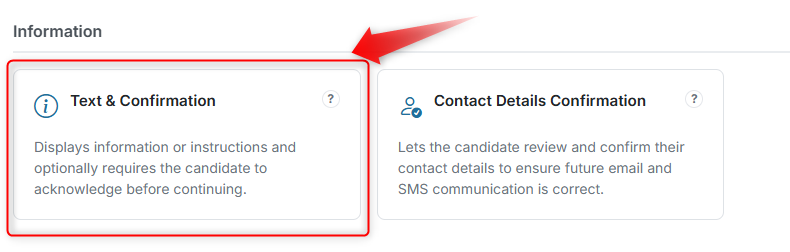
- Add a Text & Confirmation Step.
- Enter your Display Text.
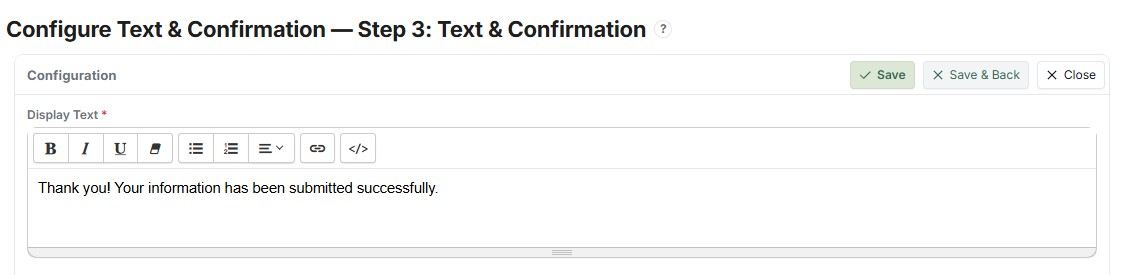 5. Set the Proceed Button Name.
 - (Optional) Insert Merge Fields.
- Click Save.
What the Candidate Sees #
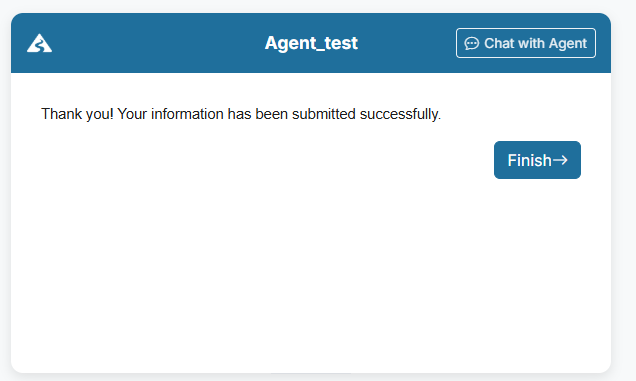
- A message (your Display Text)
- A single button (e.g., Continue, Next, Finish)
This Step is simple and focused, guiding the Candidate forward.
Tips #
- Keep messages short and clear
- Use this Step to guide transitions between Steps
- Use Merge Fields to personalise the experience