Overview #
Merge Fields are dynamic placeholders that pull real data into your messages, forms, and other content. They automatically replace placeholder text with information such as the Candidate's name, the Agent's details, or Journey-specific data.
This means you can personalise communication without manually typing the same information each time.
Where Merge Fields Are Used #
Merge Fields are available in multiple areas across the system, including:
- Step configuration (Text & Confirmation Steps)
- Email messages
- SMS messages
- Templates
Anywhere you send or display content to a Candidate, Merge Fields can be used.
How Merge Fields Work #
Merge Fields act as placeholders using double-brace syntax. For example:
{{candidate.first_name}}
{{agent.name}}
When the message is sent or displayed, the system replaces each placeholder with the corresponding real data. Each Candidate receives personalised content based on their own record.
Available Merge Field Categories #
When editing content (such as Email or SMS), the Merge Fields panel appears. It lists all available fields grouped by category:
- Candidate — Name, email, phone, and other Candidate record fields
- Brand — Brand-level information
- Agent — Agent name and configuration details
- Sender — Information about the sender
- Journey — Journey-specific data and status
Scroll through the panel to find the field you need.
How to Use Merge Fields #
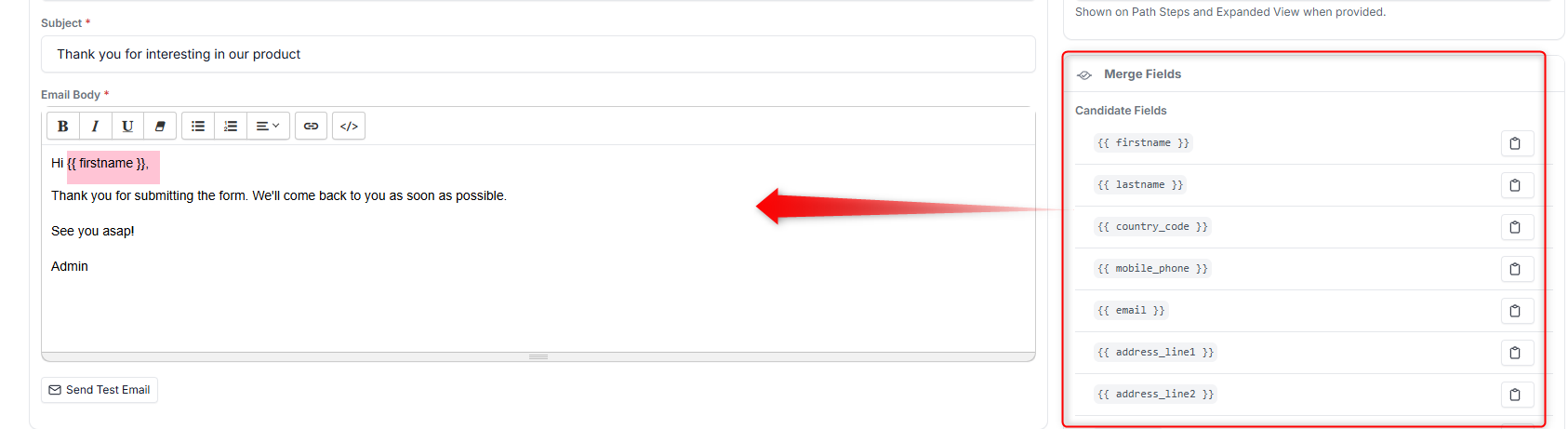
- Open a section where content can be edited (e.g., Email, SMS, or Step content).
- Locate the Merge Fields panel.
- Click on a field to insert it, or copy the placeholder text and paste it into your message.
The system automatically replaces the Merge Field with real data when the content is sent or displayed.
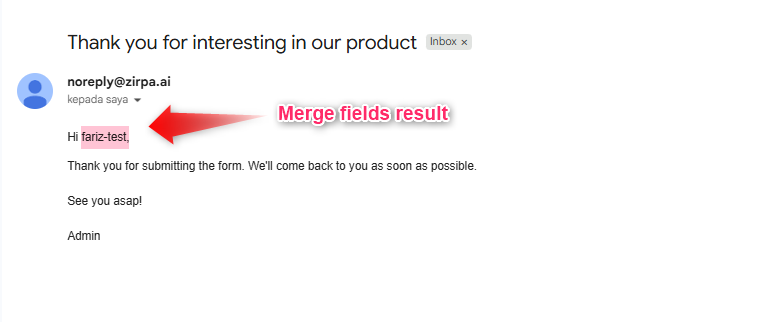 This will automatically personalise the message for each Candidate.
Why Merge Fields Matter #
- Save time by avoiding repetitive data entry
- Ensure consistency across messages
- Enable personalised communication at scale