How It Works #
- The Candidate reaches a protected Step.
- The system requires identity verification.
- The Candidate requests an access code (OTP).
- The code is sent via SMS or email.
- The Candidate enters the code.
- Access is granted and the Journey continues.
How to Configure #
- Open your Agent in the Agent Editor.
- Go to Path Steps.
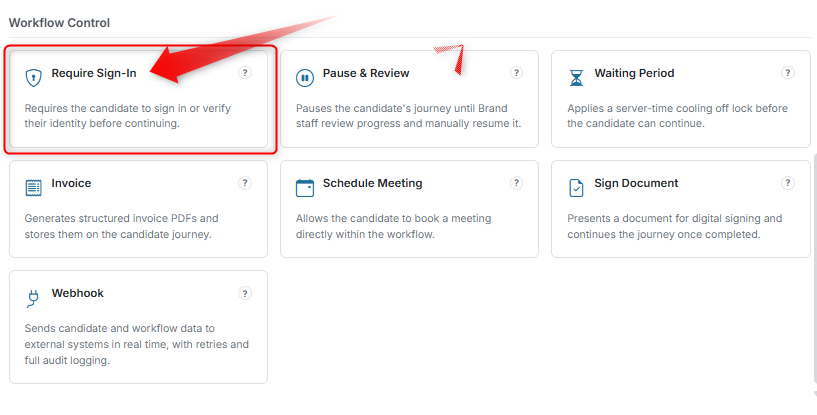
- Click Add Step → select Require Sign-In.
Configure Display #
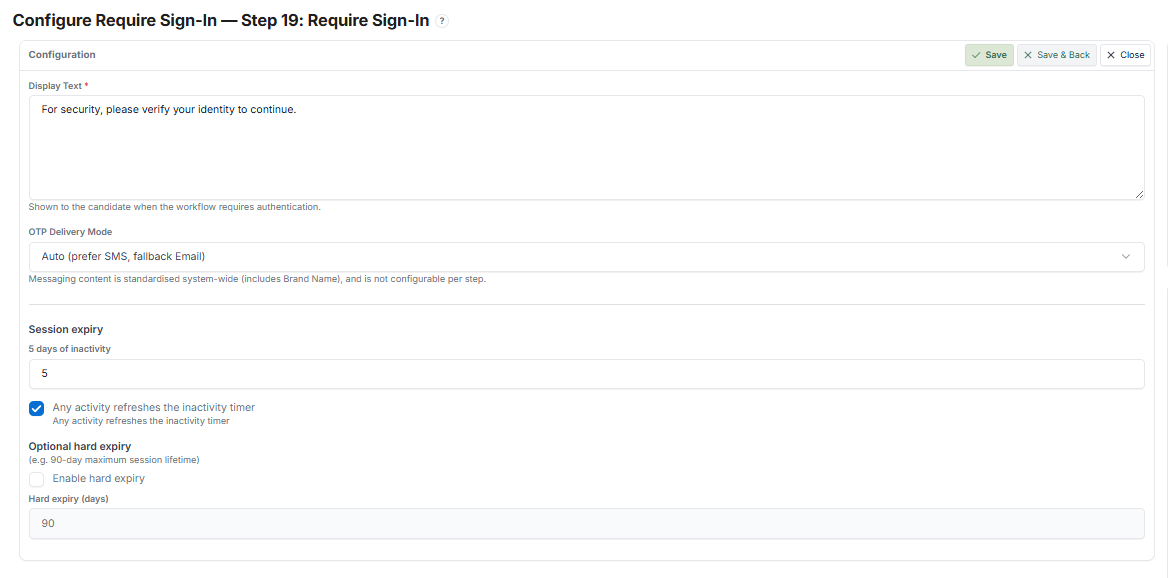
- Enter Display Text (message shown to the Candidate, e.g., "For security, please verify your identity to continue.")
Configure OTP Delivery #
- Select the delivery mode:
- Auto — SMS first, with email as fallback (recommended)
Configure Session Settings #
- Set session expiry (e.g., 5 days of inactivity)
- Enable "Refresh on activity" if you want the session to stay active as long as the Candidate is using it
(Optional) Configure Hard Expiry #
- Enable maximum session lifetime (e.g., 90 days)
- After this period, the Candidate must re-verify regardless of activity
- Click Save.
What the Candidate Sees #
Step 1: Access Locked #
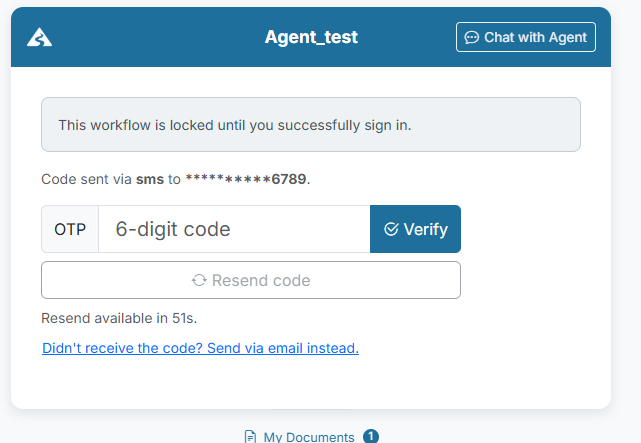
- The Candidate sees a message: "For security, please verify your identity to continue."
- The Journey is locked until sign-in is completed.
Step 2: Request Code #
- The Candidate clicks "Get access code".
- The system sends a one-time password (OTP) via:
- SMS (primary)
- Email (fallback)
Step 3: Enter Verification Code #
- The Candidate enters the received code.
- The system validates the code.
Step 4: Access Granted #
- If successful:
- The Journey unlocks
- The Candidate continues to the next Step
- If failed:
- The Candidate can retry entering the code
- Or request a new code
Session Behaviour #
- Once verified, the Candidate remains signed in.
- The session stays active based on the configured expiry rules.
Candidate Record #
- Verification status is recorded in the Candidate's data.
- Session/authentication state is tracked.
Tips #
- Place this Step before sensitive actions (e.g., document upload, signing)
- Keep the message simple and reassuring
- Use Auto delivery mode to maximise success rate
- Set a reasonable session expiry to balance security and convenience
Notes #
- OTP messaging content is system-controlled (not editable per Step)
- Requires valid Candidate contact details (phone or email)
- Session settings apply across the entire Journey