How It Works #
- The Candidate reaches the Brand Video Step.
- A video is displayed in the Runner.
- The Candidate watches the video.
- The Candidate clicks the proceed button.
- The Journey continues to the next Step.
How to Configure #
- Open your Agent in the Agent Editor.
- Go to Path Steps. Choose Brand Video.
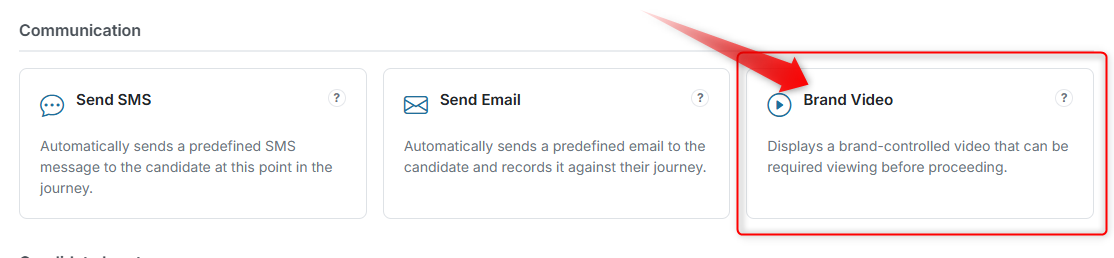
- Click Configure on a Brand Video Step.
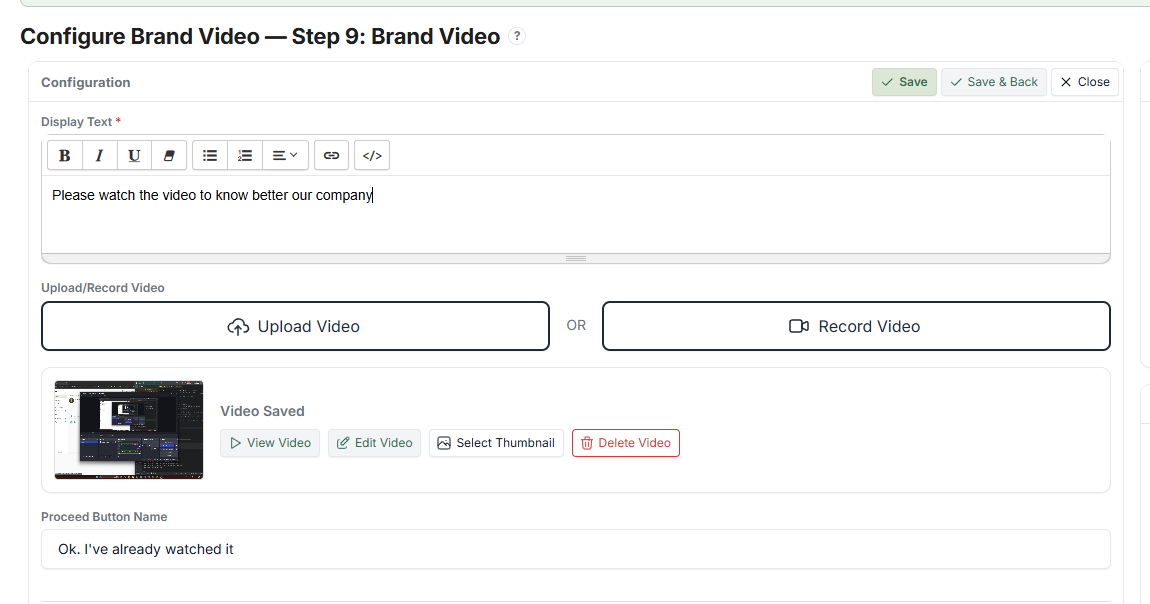
- Enter the Video URL (e.g., YouTube, Vimeo, or hosted link).
- Enter your Display Text (optional message above or below the video).
- Set the Proceed Button Name.
- Click Save.
What the Candidate Sees #
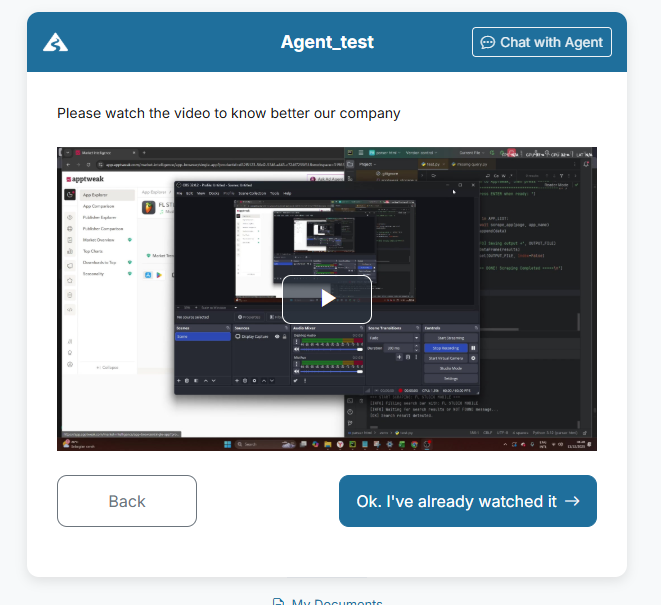
- A video player embedded in the Runner
- An optional message
- A button to continue
Tips #
- Use short, engaging videos (under 3 minutes is ideal)
- Ensure the video URL is publicly accessible
- Use this Step for welcome messages, brand introductions, or instructions