How It Works #
- The Step is triggered in the Journey.
- The system sends an SMS to the Candidate's phone number.
- The message can include dynamic data using Merge Fields.
- The Journey continues automatically.
How to Configure #
- Open your Agent in the Agent Editor.
- Go to Path Steps. Choose Send SMS
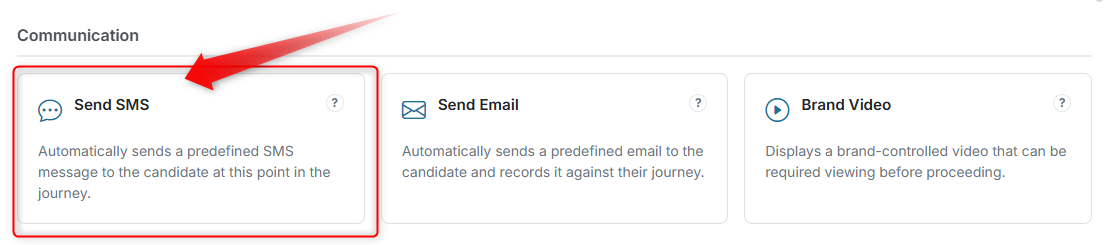
- Click Configure on a Send SMS Step.
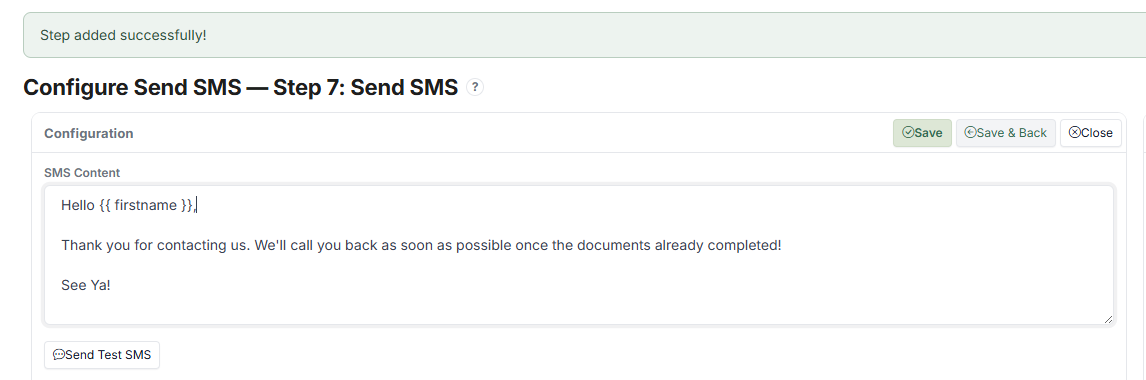
- Enter your SMS Content (the message to send).
- (Optional) Insert Merge Fields (e.g., {{ firstname }}).
- (Optional) Click Send Test SMS to preview the message.
- Click Save.
What the Candidate Sees #
The Candidate receives:
- An SMS message on their phone
- The message content you configured
- Personalised content if Merge Fields are used
This happens outside the Runner — the SMS is delivered as a standard text message. The Candidate does not need to do anything in the Journey interface.
Tips #
- Keep messages short and clear (SMS has character limits)
- Use Merge Fields to personalise the message (e.g., "Hi {{ firstname }}")
- Make sure the phone number field is correctly collected before this Step
- Use for confirmations, reminders, or follow-ups
- Test the message using Send Test SMS before going live
Notes #
- The SMS is sent immediately when the Step is triggered
- This Step runs automatically and does not require Candidate interaction
- If SMS delivery fails, check the Candidate's phone number data
- SMS messages are recorded against the Candidate's Journey