How It Works #
- The Candidate reaches the Pause & Review Step.
- The Journey is paused automatically.
- The Candidate sees a waiting message.
- Reviewers assess the Candidate's data and submissions.
- A reviewer manually resumes the Journey.
- The Candidate is notified (if configured) and continues.
How to Configure #
- Open your Agent in the Agent Editor.
- Go to Path Steps.
- Click Add Step → select Pause & Review.
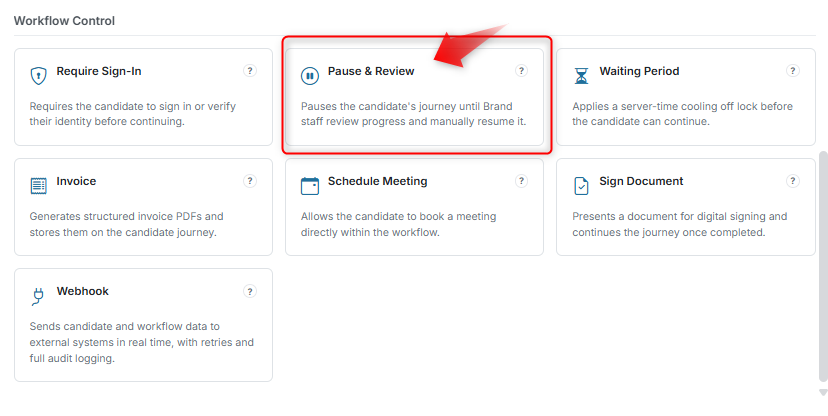
Configure Display #
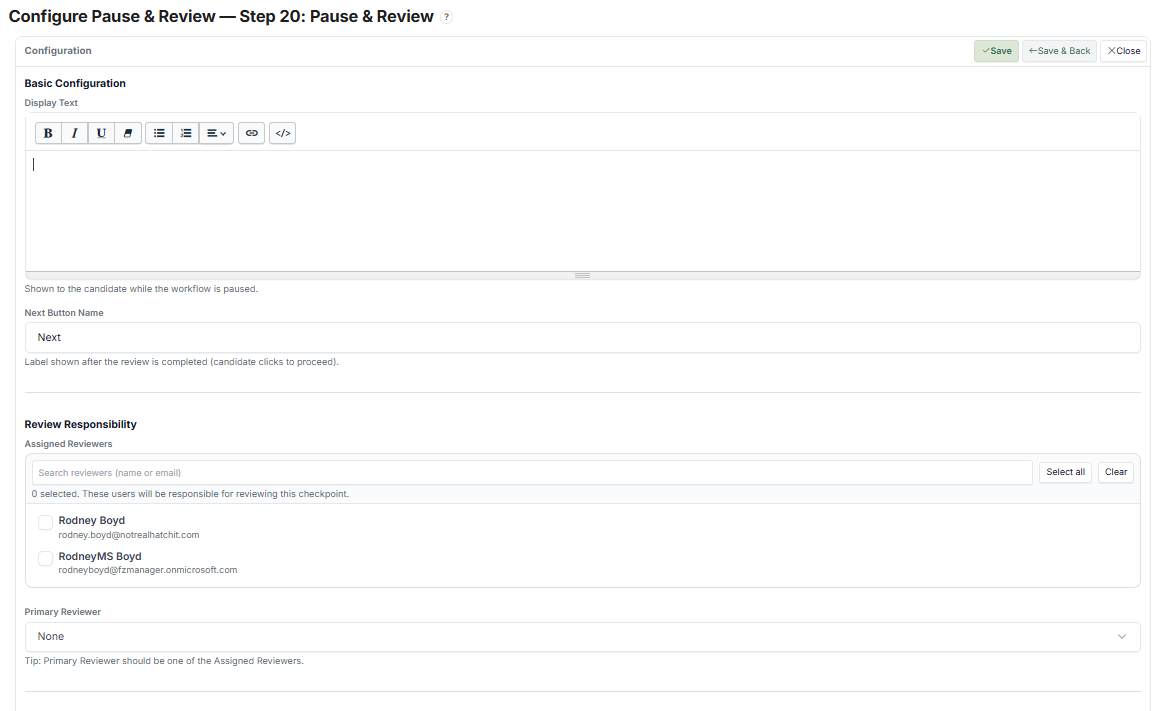
- Enter Display Text (message shown to the Candidate while paused, e.g., "Thank you. Your application is being reviewed.")
- Set Next Button Name (button shown after resume, e.g., "Continue")
Assign Reviewers #
- Select Assigned Reviewers (users who will review this Step)
- Set a Primary Reviewer (optional)
Internal Setup (Optional) #
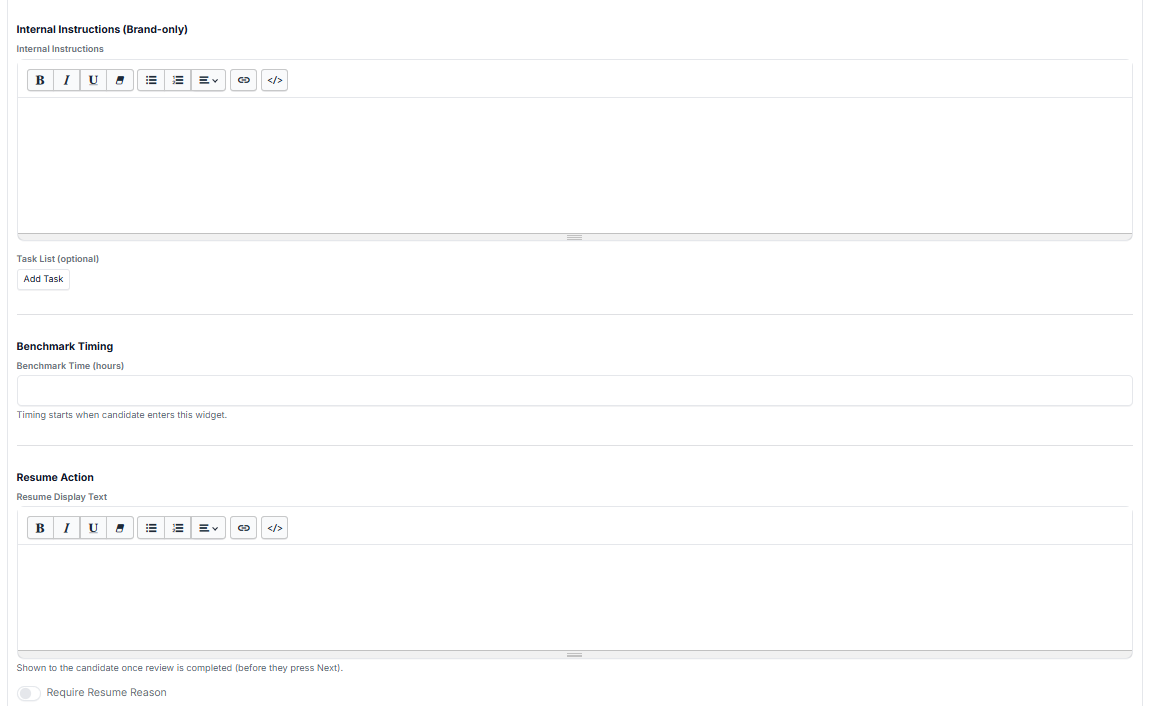
- Add Internal Instructions (guidance for the reviewer, e.g., "Check submitted documents for completeness")
- Add a Task List (checklist for the reviewer)
- Set Benchmark Timing (expected review turnaround time)
Resume Settings #
- Enter Resume Display Text (message shown to the Candidate after resume, e.g., "Your application has been approved!")
- Enable "Require Resume Reason" if you want reviewers to explain why they resumed
Notifications (Optional) #
- Notify Candidate when the review is completed
- Notify Reviewers when the pause starts
- Click Save.
What the Candidate Sees #
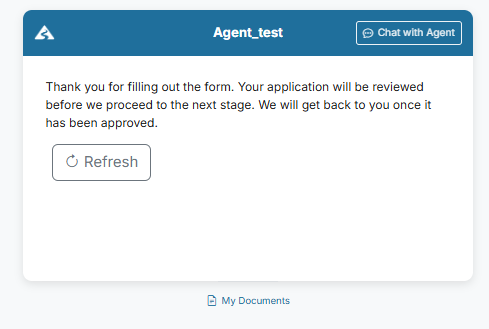
Step 1: Journey Paused #
- The Candidate sees a message, e.g.: "Thank you for filling out the form. Your application will be reviewed before we proceed to the next stage."
- A Refresh button may be available.
- The Candidate cannot proceed.
Step 2: Waiting State #
- The Candidate remains in a paused state.
- They can leave and return later — the Journey stays locked until review is completed.
Step 3: Review Completed #
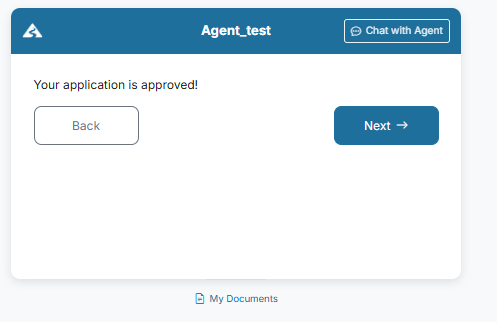
- Once the reviewer resumes the Journey, the Candidate sees the resume message, e.g.: "Your application is approved!"
- A button (e.g., "Next") becomes available.
Step 4: Continue Journey #
- The Candidate clicks the button and the Journey proceeds.
What the Admin / Reviewer Does #
This Step requires manual action from the reviewer.
Step 1: Candidate Enters Pause State #
- Candidate status shows: Paused – Awaiting Review
- Internal instructions and task list are visible to the reviewer.
Step 2: Review the Candidate #
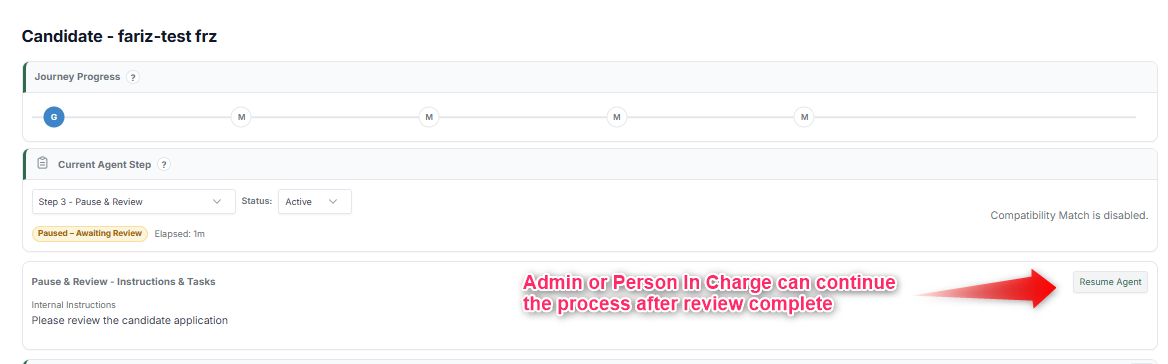
The reviewer evaluates:
- Submitted data
- Uploaded documents and responses
- Any internal checklist items
Step 3: Resume the Journey #
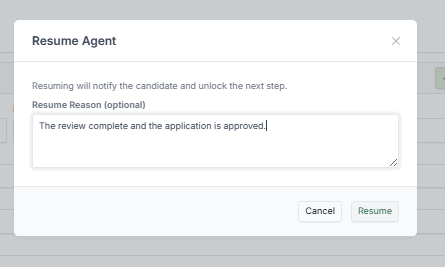
- The reviewer clicks Resume Agent.
- A modal appears.
- (Optional) The reviewer enters a Resume Reason, e.g., "The review is complete and the application is approved."
Step 4: Unlock Candidate Journey #
- The Candidate is notified (if configured).
- The next Step is unlocked.
- The Candidate can continue.
Candidate Record #
- Review status is tracked.
- Resume action is logged in the Journey Timeline.
- Resume reason (if used) is stored.
Tips #
- Always assign at least one reviewer
- Use clear "waiting" messaging to reduce Candidate confusion
- Add internal instructions for consistent reviews across team members
- Set benchmark timing to keep reviews on track
Notes #
- This Step requires manual resume action — the Candidate cannot proceed without it
- Resume action fully controls progression
- Use Waiting Period if you need an automatic (timed) pause instead