How It Works #
- The Candidate reaches the Waiting Period Step.
- The system starts a countdown timer.
- The Candidate enters a waiting state.
- The timer runs in the background.
- The Step unlocks automatically when the timer expires.
- The Candidate continues to the next Step.
How to Configure #
- Open your Agent in the Agent Editor.
- Go to Path Steps.
- Click Add Step → select Waiting Period.
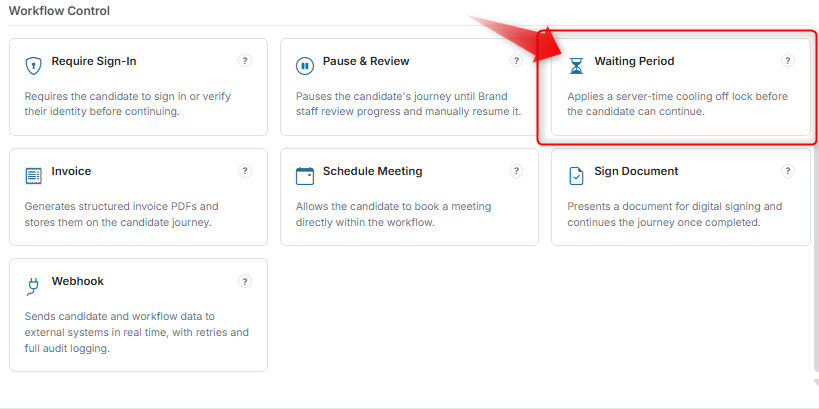
Configure Display #
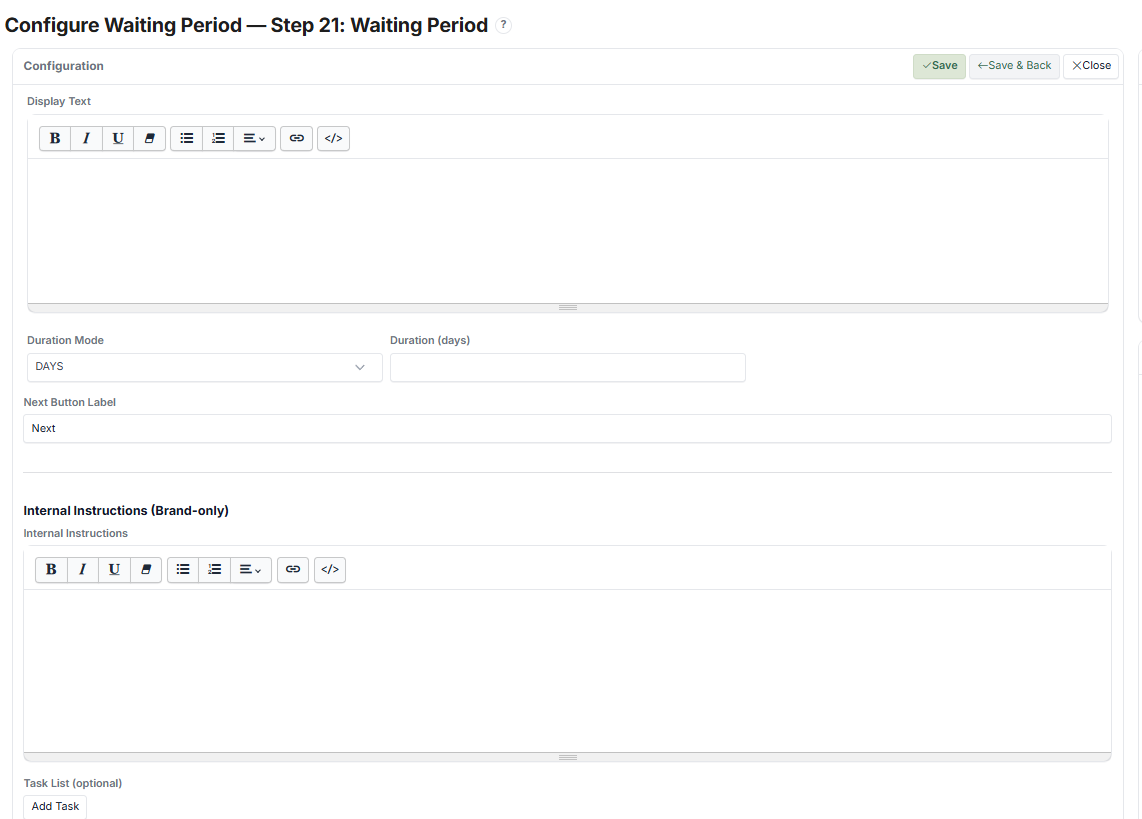
- Enter Display Text (message shown during waiting, e.g., "Please wait for about 3 days while we check your application.")
- Set the Next Button Label
Configure Timing #
- Select Duration Mode (e.g., Days, Hours)
- Enter the Duration (e.g., 3 days)
Internal Setup (Optional) #
- Click Save.
What the Candidate Sees #
Step 1: Waiting Message #
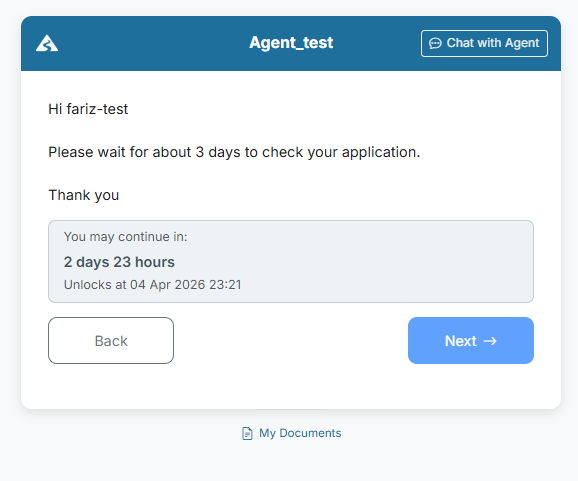
The Candidate sees a message, e.g.: "Please wait for about 3 days to check your application."
Step 2: Countdown Display #
A live countdown is shown:
- Remaining time (e.g., "You may continue in: 2 days 23 hours")
- Unlock time (e.g., "Unlocks at: 04 Apr 2026 23:21")
- This updates automatically over time
Step 3: Waiting State #
- The Candidate cannot proceed immediately
- The Next button is disabled until the timer expires
- The Candidate can leave and return later
Step 4: Timer Completion #
Once the timer expires:
- The Step unlocks automatically
- The Next button becomes usable
Step 5: Continue Journey #
- The Candidate clicks Next
- The Journey proceeds
What the Admin / Reviewer Sees #
Status Visibility #
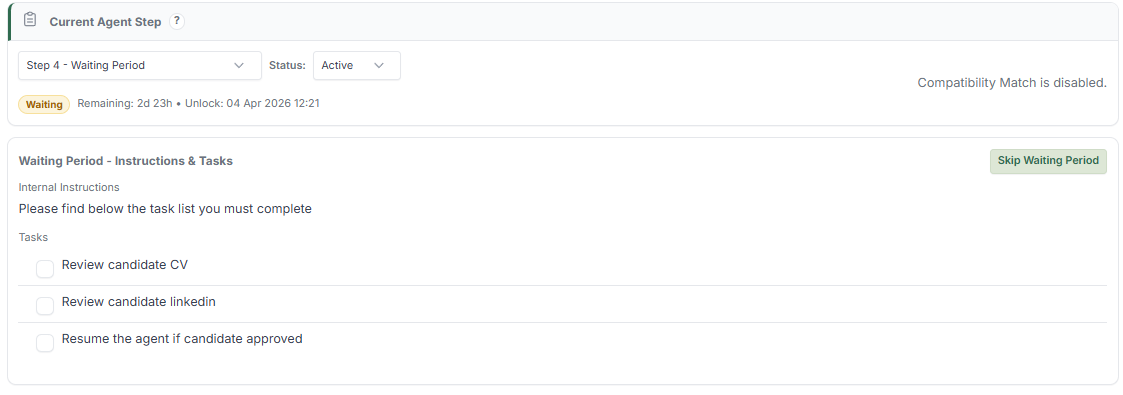
The Candidate's status shows:
- Waiting state
- Remaining time (e.g., 2d 23h)
- Exact unlock timestamp
Internal Instructions & Tasks #
- Internal instructions are visible to team members
- The task list can be used for internal tracking during the wait
Example tasks:
- Review Candidate CV
- Review Candidate LinkedIn
- Prepare next Step
Optional Override #
Admin can manually click Skip Waiting Period to:
- Immediately unlock the Step
- Allow the Candidate to proceed without waiting
Candidate Record #
- Waiting duration and timestamps are tracked
- Unlock timing is recorded
- Admin actions (e.g., skip) are logged
Tips #
- Always show a clear countdown to reduce Candidate confusion
- Keep the waiting time reasonable
- Use internal tasks for team coordination during the wait
- Combine with Send Email or Send SMS to notify the Candidate
Notes #
- Fully automated unless manually skipped by an admin
- Countdown is visible to both the Candidate and the Admin
- Useful for processing time, cooling-off periods, or staged releases