How It Works #
- The Candidate reaches the Schedule Meeting Step.
- Available time slots are shown (from connected calendars).
- The Candidate selects a preferred time.
- The meeting is booked automatically.
- An event is created in the connected calendar.
- The Journey continues.
How to Configure #
- Open your Agent in the Agent Editor.
- Go to Path Steps.
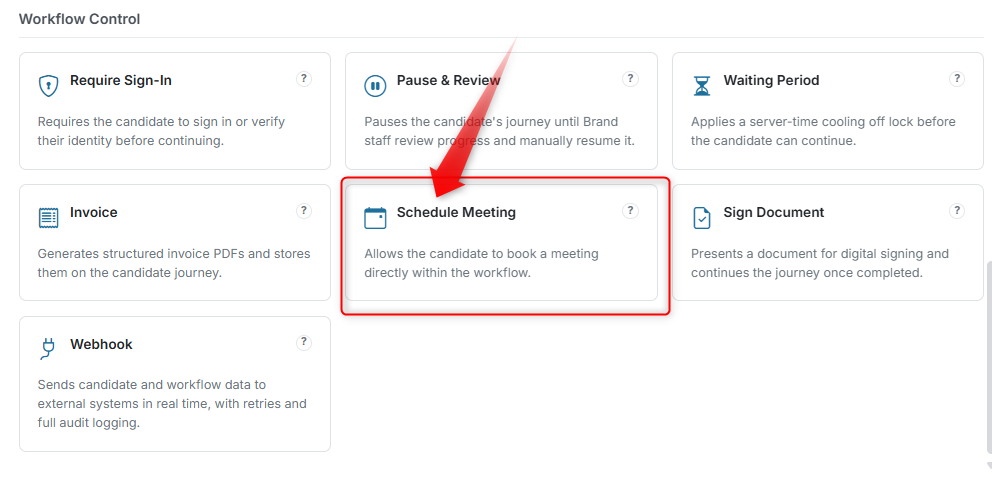
- Click Add Step → select Schedule Meeting.
Basic Setup #
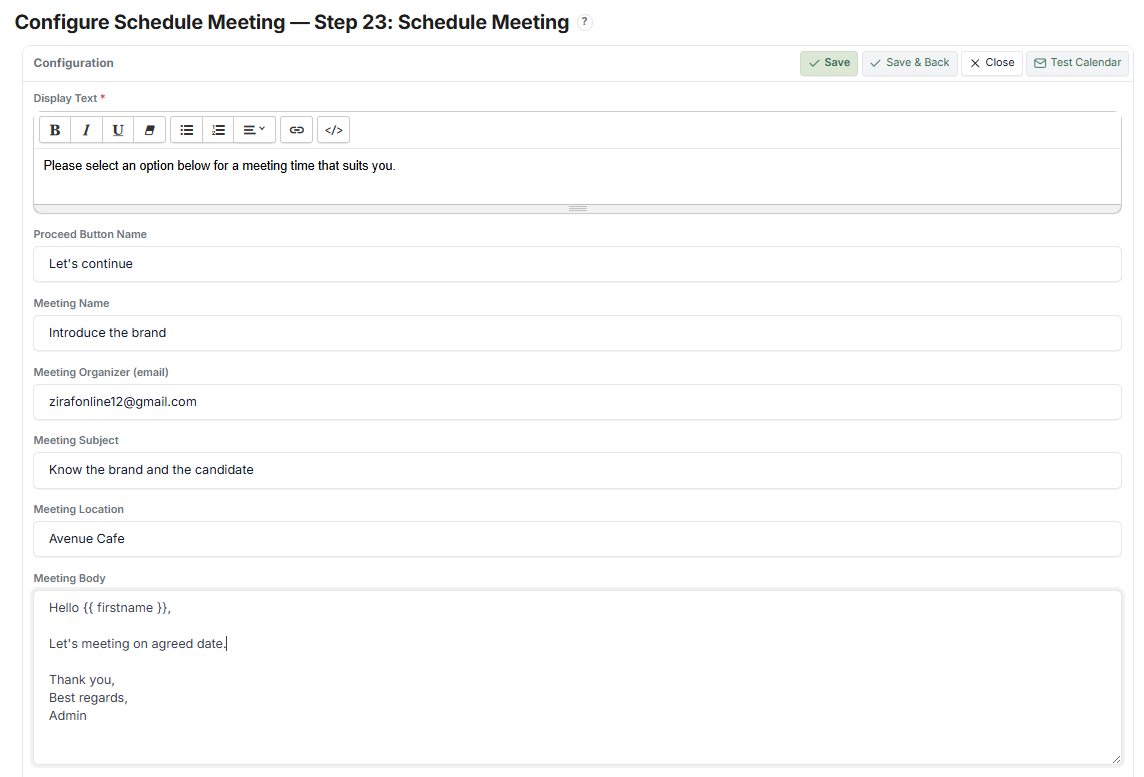
- Display Text → Message shown to the Candidate (e.g., "Please select a time for your meeting.")
- Proceed Button Name → Label shown after booking (e.g., "Continue")
Meeting Details #
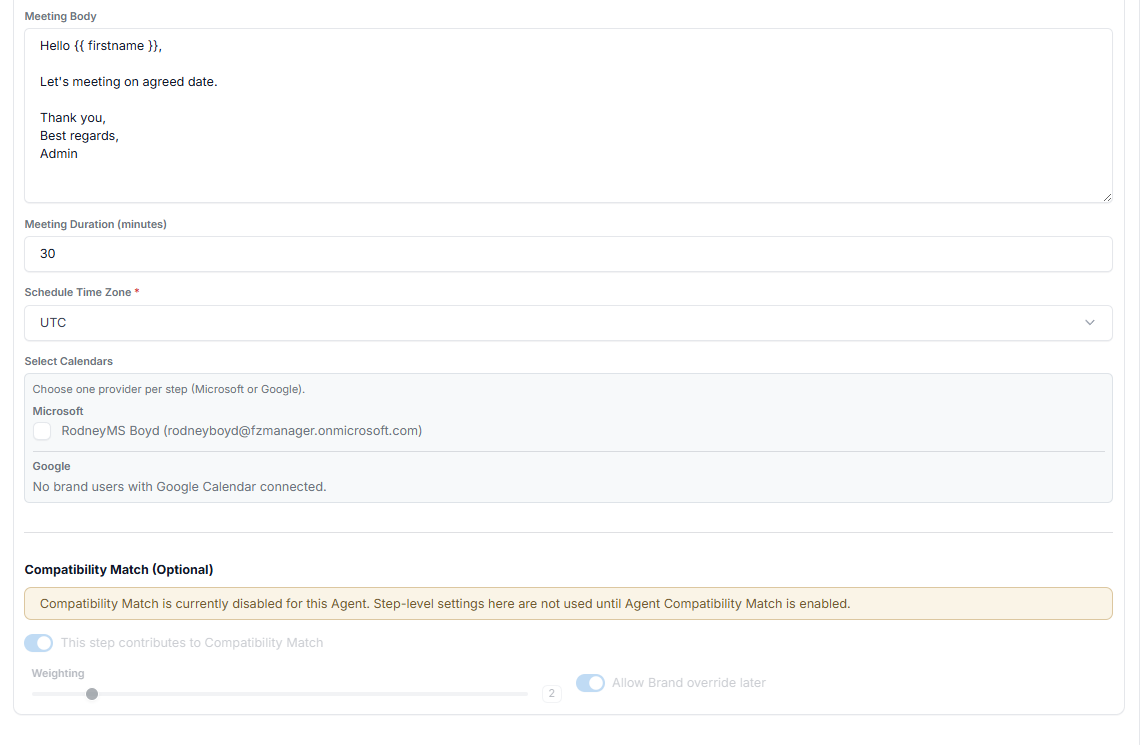
- Meeting Name → Internal reference name
- Meeting Organiser → Email of the host
- Meeting Subject → Calendar event title (e.g., "Onboarding Call")
- Meeting Location → Physical address or virtual link (e.g., Zoom URL)
- Meeting Body → Description shown in the calendar event (supports Merge Fields)
Scheduling Setup #
- Meeting Duration → e.g., 30 minutes
- Time Zone → e.g., UTC, AEST
Calendar Connection #
- Select a calendar provider:
- Microsoft (Outlook / Office 365)
- Google (Google Calendar)
- Choose available calendars (e.g., assigned user's calendar)
- Click Save.
What the Candidate Sees #
Step 1: Select Time Slot #
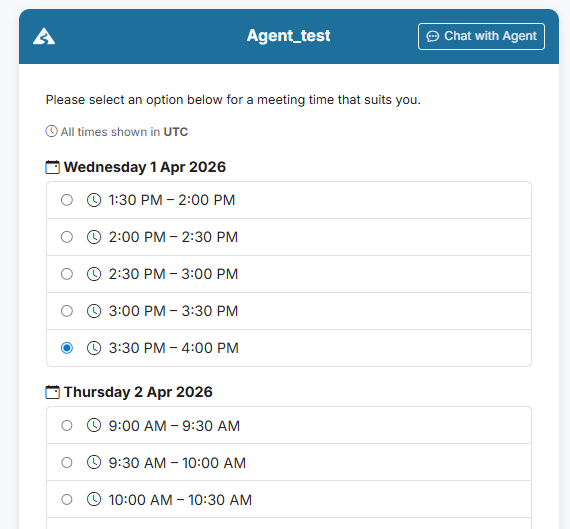
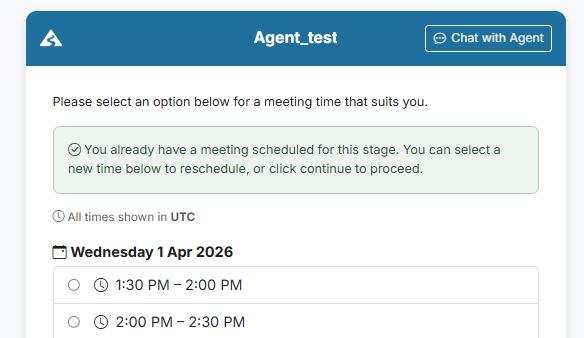
The Candidate sees available slots grouped by date. Example:
Wednesday, 1 Apr
- 1:30 PM – 2:00 PM
- 2:00 PM – 2:30 PM
- 3:30 PM – 4:00 PM
Step 2: Choose Slot #
- The Candidate selects one time option.
- The UI highlights the selected slot.
Step 3: Confirm #
- The Candidate clicks the proceed button.
- The meeting is booked.
How the Runner Handles Scheduling #
- Time slots are dynamically generated from the connected calendar
- Only available slots are shown (no conflicts)
- Time is displayed based on the configured timezone
- Once selected:
- The slot is locked
- The booking is confirmed
- The Candidate can reschedule if needed
What the Admin / Reviewer Sees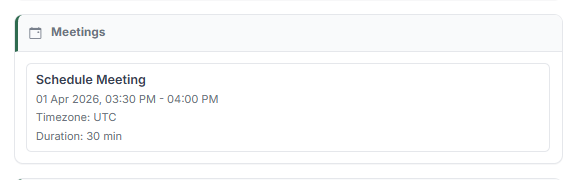 #
#
Meeting Created #
- The meeting appears under the Candidate record.
- Details include:
- Date & time
- Duration
- Timezone
Calendar Sync #
- The event is created in the organiser's calendar (Microsoft or Google).
Tracking #
Admin can see:
- Scheduled meetings per Candidate
- Timing and attendance context
Tips #
- Keep meeting duration realistic (15–30 minutes is ideal)
- Always set a clear meeting location (Zoom link or physical address)
- Use Merge Fields in the Meeting Body for personalisation
- Make sure the calendar integration is connected and working before going live
Notes #
- Requires calendar integration (Microsoft or Google)
- Time slots depend on the organiser's calendar availability
- The system prevents double booking automatically