How It Works #
- The Candidate enters their location (postcode or suburb).
- The system detects and maps the location.
- The Candidate selects a travel distance or relocation preference.
- The system evaluates availability based on configured territories.
- A result (available / unavailable) is shown.
- The Journey continues to the next Step.
How to Configure #
- Open your Agent in the Agent Editor.
- Go to Path Steps.
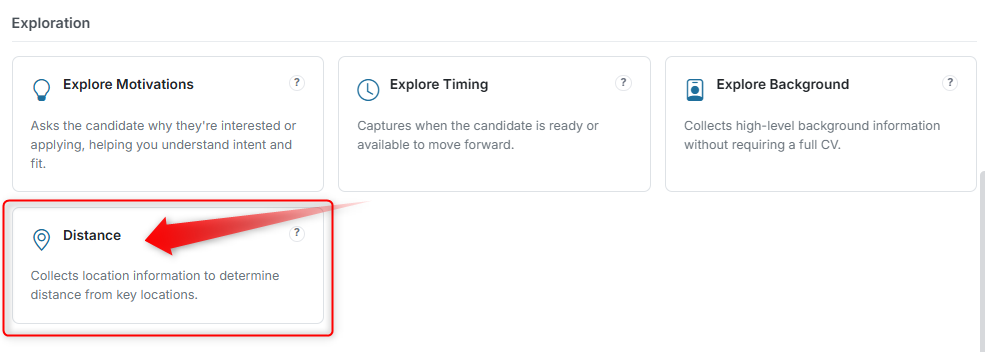
- Click Add Step → select Distance.
Configure Prompts #
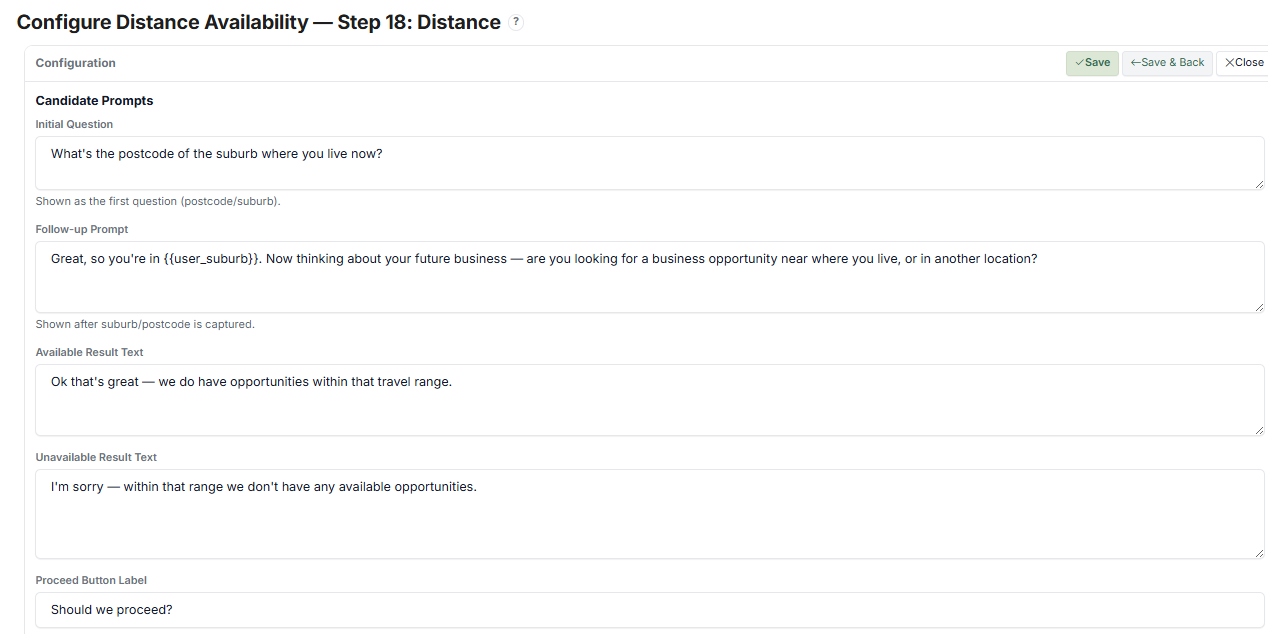
- Enter the Initial Question (e.g., "What is your postcode or suburb?")
- Add a Follow-up Prompt (dynamic location message after detection)
- Set Available result message (e.g., "Great — we have opportunities within that range.")
- Set Unavailable result message (e.g., "Sorry — we don't have opportunities within that range.")
- Configure the Proceed Button Label
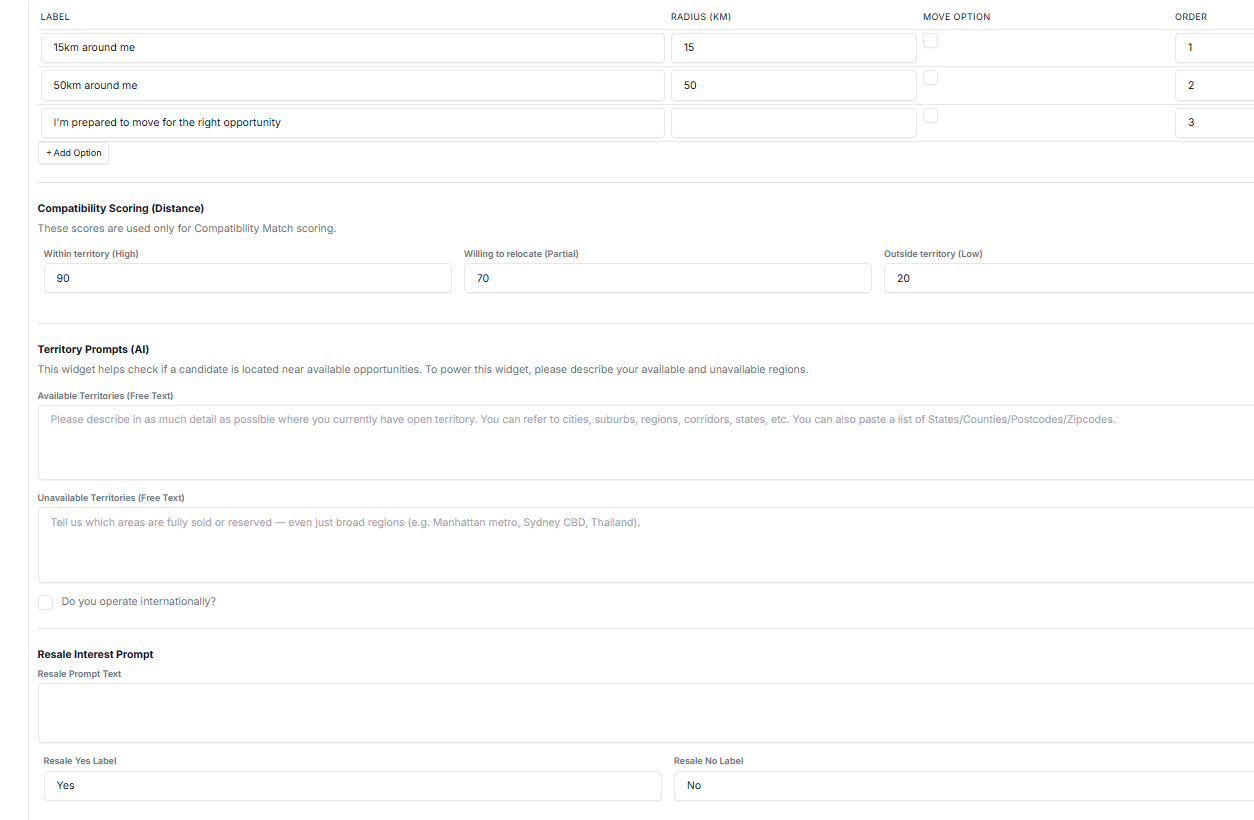
Configure Distance Options #
(Optional) Configure Territories #
- Define available and unavailable regions
- Enable international option if needed
- Click Save.
What the Candidate Sees #
Step 1: Location Input #
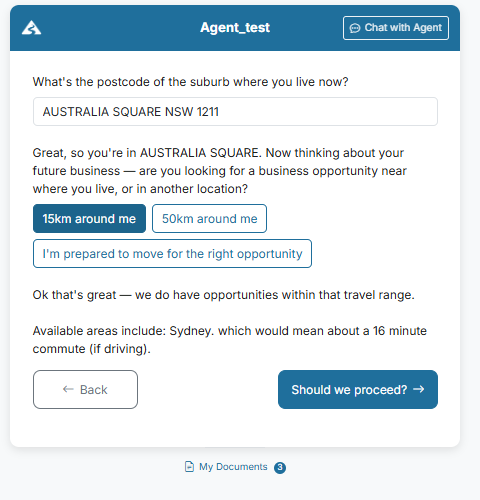
- The Candidate is asked to enter their postcode or suburb.
- The system auto-detects and confirms the location (e.g., "AUSTRALIA SQUARE NSW 1211").
Step 2: Location Confirmation & Follow-up #
A dynamic message appears using the detected location. Example:
"Great, so you're in AUSTRALIA SQUARE. Now thinking about your future business — are you looking for a business opportunity near where you live, or in another location?"
Step 3: Distance Selection #
The Candidate selects one option:
- 15km around me
- 50km around me
- I'm prepared to move for the right opportunity
The selected option is highlighted. The Candidate can change their selection before continuing.
Step 4: Availability Result #
The system evaluates the selected option against configured territories and displays a result:
Available example: "Ok that's great — we do have opportunities within that travel range."
Additional context (if available): "Available areas include: Sydney, which would mean about a 16 minute commute (if driving)."
Unavailable example: "I'm sorry — within that range we don't have any available opportunities."
Step 5: Submission #
The Candidate clicks the Proceed button and the Journey continues.
Candidate Record #
- Captured location (postcode/suburb) is stored
- Selected distance preference is saved
- Availability result can be used for filtering and decision-making
Tips #
- Always include a relocation option for flexibility
- Keep distance ranges realistic and easy to understand
- Use clear messaging for both available and unavailable results
Notes #
- This Step combines input, selection, and system evaluation
- Accuracy depends on properly configured territories
- Commute time and matched areas are dynamically generated