How It Works #
- The Candidate reaches the Video Response Step.
- A video recording interface is displayed in the Runner.
- The Candidate records a video.
- The Candidate reviews and submits the recording.
- The video is saved to the Candidate record.
- The Journey continues to the next Step.
How to Configure #
- Open your Agent in the Agent Editor.
- Go to Path Steps.
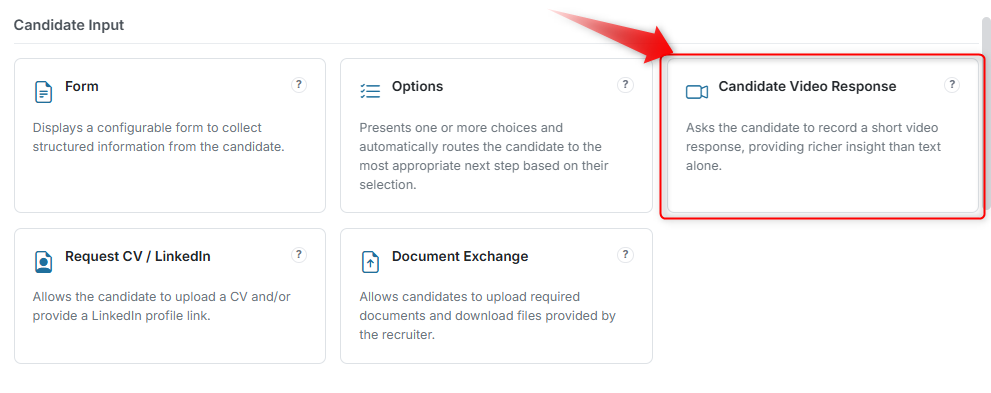
- Click Add Step → select Candidate Video Response.
- Enter your Display Text (instructions for the Candidate).
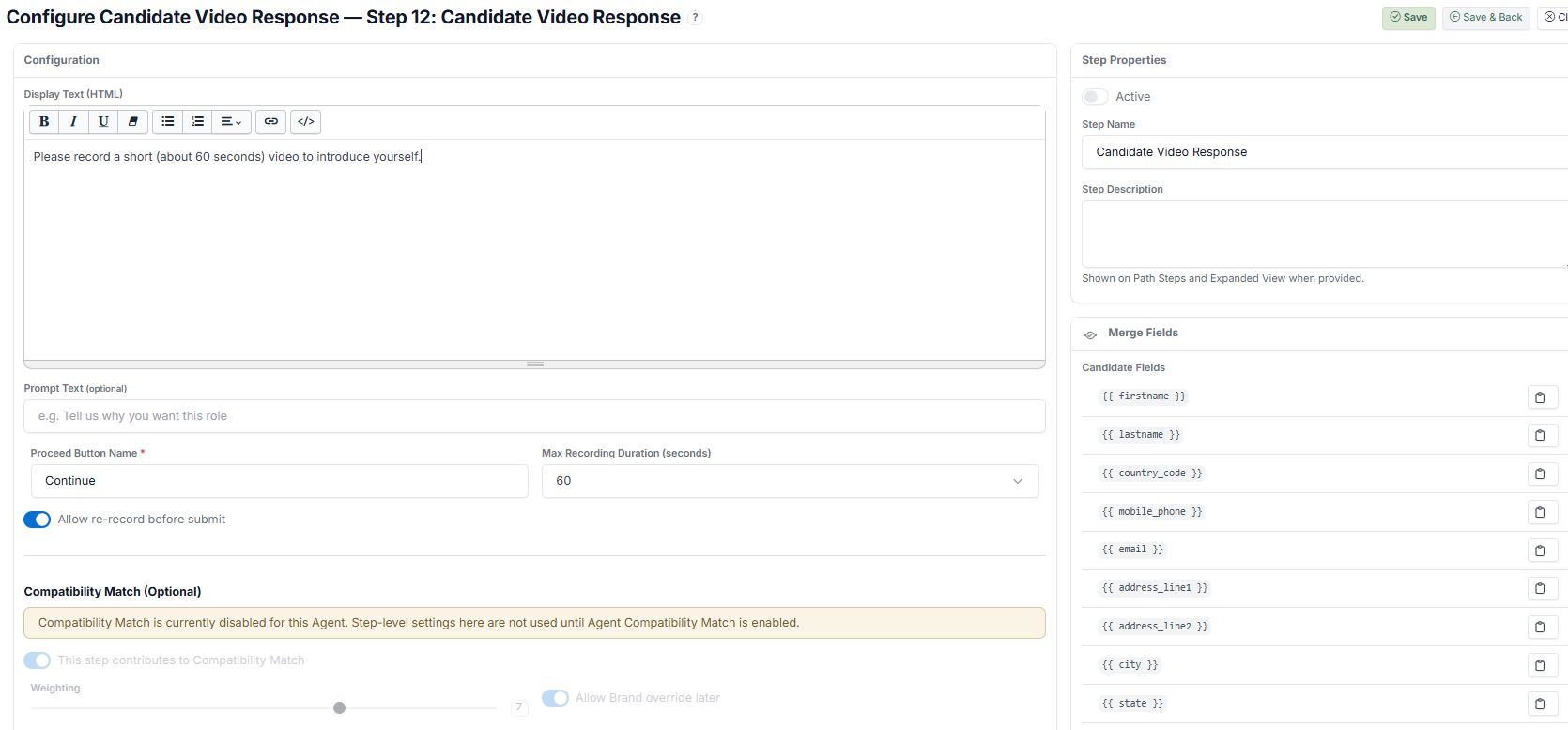
- (Optional) Add Prompt Text (the specific question or topic).
- Set the maximum recording duration.
- Configure the Proceed Button Name.
- Click Save.
What the Candidate Sees #
Recording Interface #
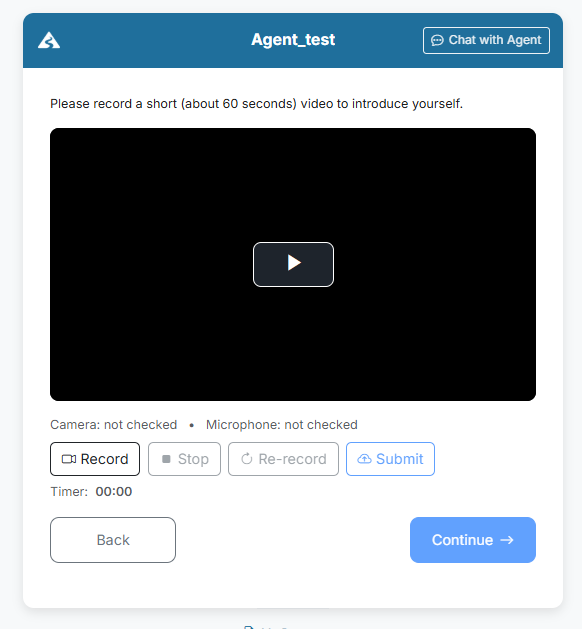
A video recording interface is shown inside the Runner with:
- A video preview area (camera feed)
- Control buttons:
- Record → Start recording
- Stop → Stop recording
- Re-record → Retake the video (if enabled)
- Submit → Upload the final video
- A timer showing the recording duration limit
Camera & Microphone Permission #
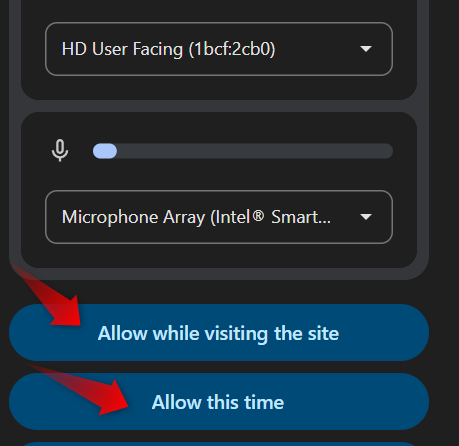
Before recording, the Candidate will be prompted by their browser to allow camera and microphone access:
- A permission popup appears
- The Candidate must select "Allow"
- If permission is not granted, the camera preview will not appear and recording cannot start
During Recording #
- The timer starts counting once recording begins
- The Candidate can stop at any time before the limit
- If enabled, the Candidate can re-record before submitting
After Submission #
- The video is uploaded automatically
- The Candidate clicks Continue to proceed
- The Journey moves to the next Step
Candidate Record #
- The submitted video is saved in the Candidate record
- Reviewers can view the video for assessment
Tips #
- Keep the recording duration short (30–60 seconds)
- Provide clear instructions (e.g., "Introduce yourself and describe your experience")
- Remind Candidates to allow camera and microphone access
- Use this Step for personality assessments, introductions, or open-ended responses
Notes #
- Video recording depends on browser permissions
- Some devices may block camera/microphone by default
- Ensure Candidates use a supported browser for the best experience