Overview #
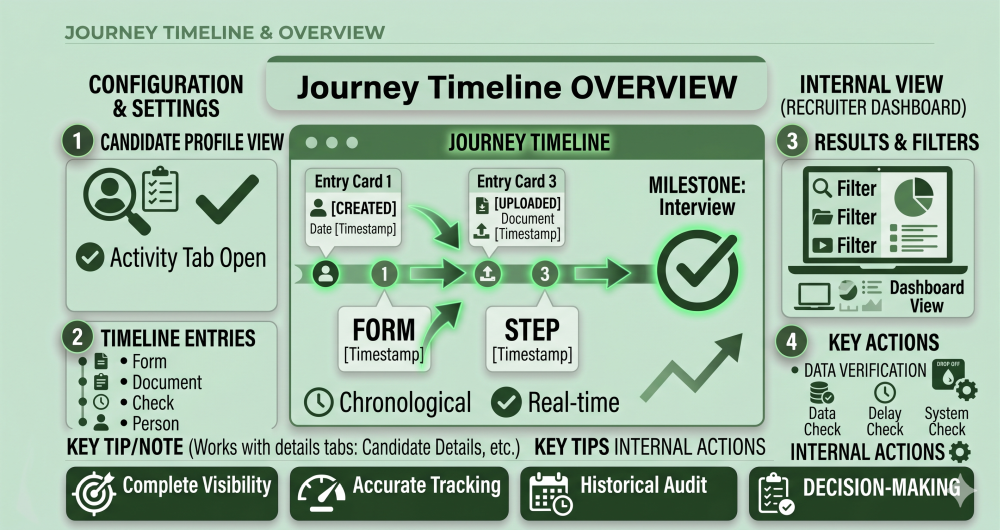
The Journey Timeline is your operational tool for reviewing what a Candidate has done, where they are now, and whether anything needs attention. It gives you a complete, chronological view of all activity.
For a general introduction to what the Journey Timeline is, see Understanding the Journey Timeline (Getting Started).
How to Access It #
- Open a Candidate profile from the Candidates section.
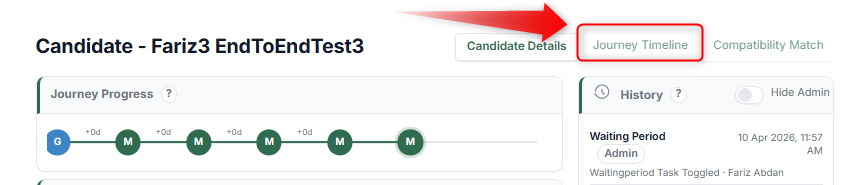
- Click the Journey Timeline tab.
You will see:
- Candidate summary (top section)
- Full activity timeline (below)
What Is Shown #
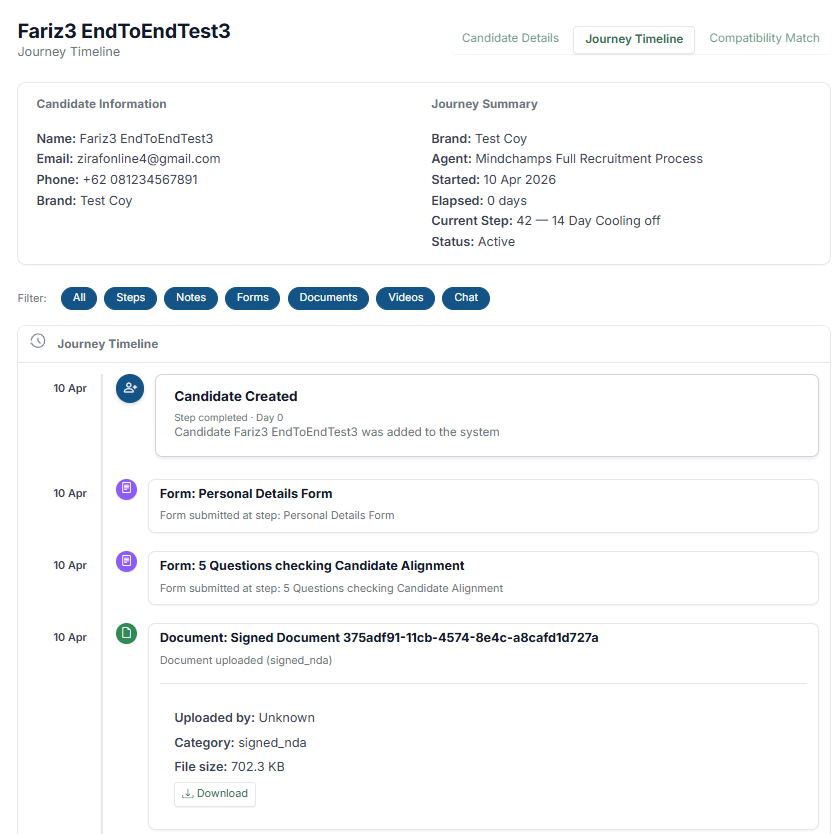
Each entry represents a completed action or system event. Common entries include:
- Candidate Created
- Form submissions
- Document uploads
- Step completions
- System-triggered actions (e.g., emails sent, webhooks fired)
Each item typically includes:
- Timestamp
- Step name
- Action details
Filtering the Timeline #
You can filter the timeline to focus on specific types of activity:
- All — Show everything
- Steps — Only Step completions
- Notes — Only internal notes
- Forms — Only form submissions
- Documents — Only uploaded documents
- Videos — Only video submissions
- Chat — Only Agent Chat interactions
Use filters to quickly find what you are looking for.
What You Can Do With the Timeline #
As an admin or team member, you can use the Journey Timeline to:
- Review progress — See exactly what the Candidate has completed
- Verify data — Check that submitted forms and documents are correct
- Identify delays — Spot where the Candidate paused or got stuck
- Track system actions — See when emails, SMS, or webhooks were triggered
- Support Candidates — Understand their experience before responding to questions
How to Spot Issues #
Look for:
- Long gaps between entries — May indicate the Candidate dropped off or got confused
- Repeated entries — May indicate a technical issue or the Candidate going back and forth
- Missing entries — A Step may not have saved correctly
- Unexpected order — May indicate a routing issue
Tips #
- Check the Journey Timeline before contacting a Candidate — you may already have the answer
- Use filters to narrow down to the relevant activity type
- Compare the timeline against the expected Path to verify everything ran correctly
Notes #
- The timeline updates automatically as actions occur
- Entries are ordered chronologically
- Some system actions may not be visible to the Candidate
- Works alongside other tabs like Candidate Details and Compatibility Match