Overview #
The Candidate Record is structured into key sections:
- Journey progress and current position
- Candidate information and collected data
- Activity and history
- Actions and supporting content
Together, these sections allow you to monitor and manage the full lifecycle of a Candidate.
Record Sections #
Journey Progress #

At the top of the page, the Journey progress bar shows:
- The overall progress through the Path
- The current active Step
- Previous and upcoming Steps
This section helps you quickly identify where the Candidate is in their Journey.
Candidate Details #
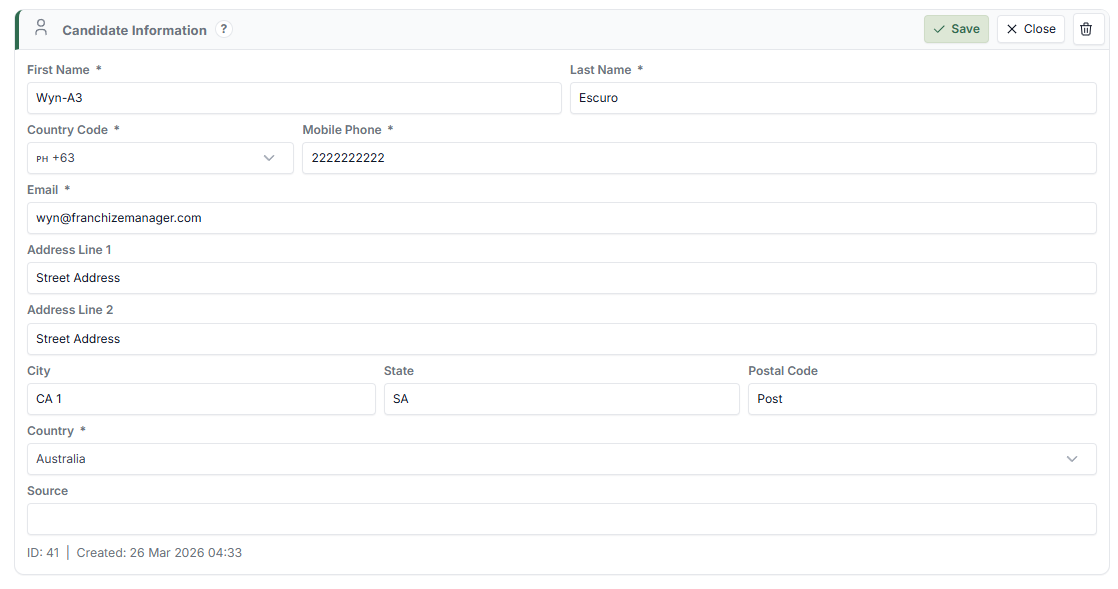 The main section contains the Candidate's core information:
- Name and contact details
- Status of the Candidate
- Current Step
- Basic profile information
- Custom Fields collected during the Journey
This information updates automatically as the Candidate progresses through Steps.
Custom Fields #
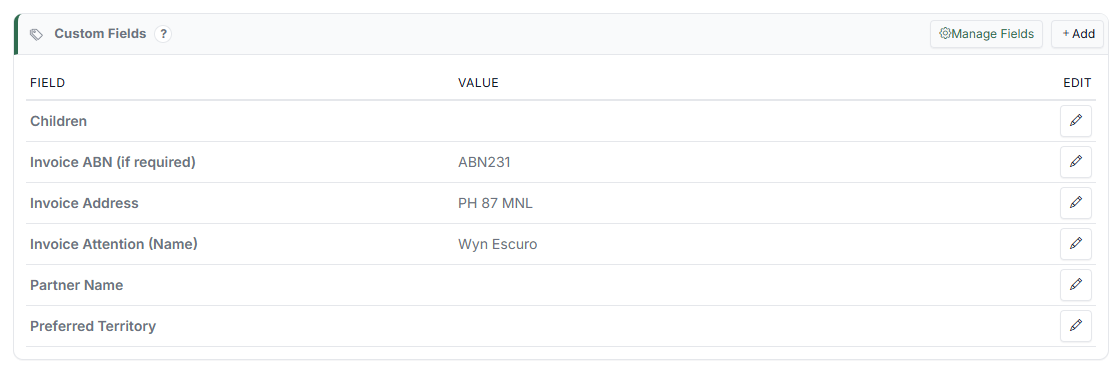 Custom Fields store additional data collected during the Journey. These fields:
- Are defined as part of your Path configuration
- Can vary depending on the Path
- Are populated through Step responses or integrations
Custom Fields allow you to capture structured information specific to your use case. For details on configuring fields, see Agent Data Model.
Notes #

The Notes section allows your team to add internal comments. You can use Notes to:
- Record observations or context
- Add follow-up information
- Share internal updates with your team
Notes are not visible to the Candidate.
Communications #
 The Communications section shows outbound messages such as emails or SMS. It allows you to:
- Review what has been sent
- Track communication history
- Send messages directly to the Candidate
Agent Chat Logs #
 This section records interactions between the Candidate and the Agent. It provides visibility into:
- Questions asked by the Candidate
- Responses provided by the Agent
- Conversation flow during the Journey
For more on configuring chat behaviour, see Agent Chat & Knowledge.
History #
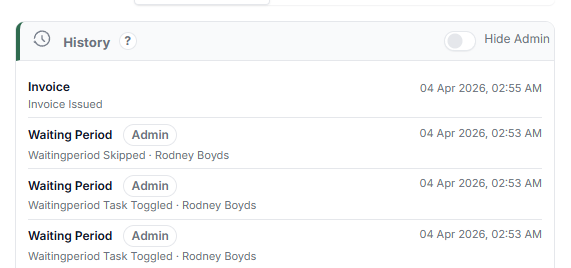
The History panel shows a summary of key events and updates related to the Candidate. It provides a quick view of recent activity without requiring you to review the full Journey Timeline.
Brand & Agent #
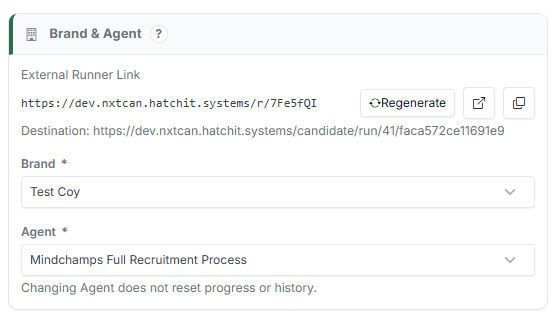 This section shows:
- The Brand associated with the Candidate
- The Agent guiding the Journey
This helps identify which configuration is being used for the Journey.
Forms #
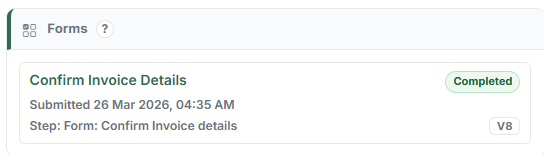
The Forms section shows any forms associated with the Candidate. You can:
- View submitted forms
- Track progress of form completion
- Access related data
Documents #
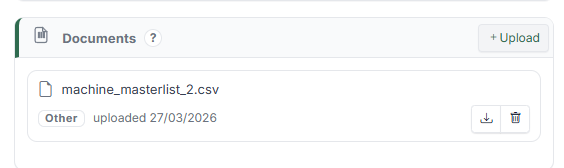 The Documents section stores files uploaded during the Journey. This may include:
- Identification documents
- Supporting files
- Any required uploads
Additional Sections #
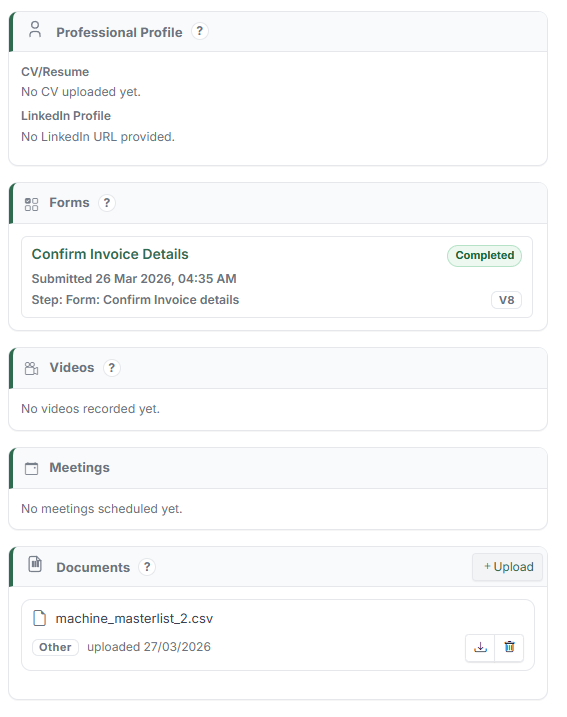 Depending on your setup, you may also see:
- Videos
- Meetings
- Other custom components
These sections provide additional context and supporting data for the Candidate.
Switching Views #
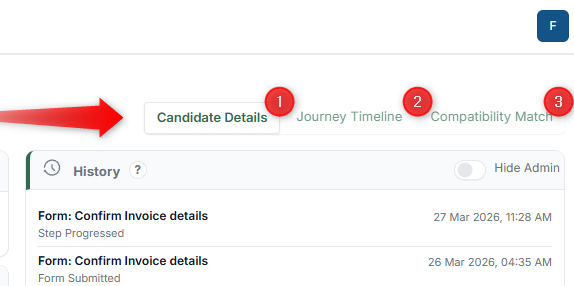
At the top of the Candidate page, you can switch between three views:
- Candidate Details — The default view described in this article
- Journey Timeline — A chronological audit trail of all activity (see Understanding the Journey Timeline)
- Compatibility Match — The evaluation of Candidate fit (see Compatibility Match)
Each view provides a different perspective on the Candidate's Journey.