Overview #
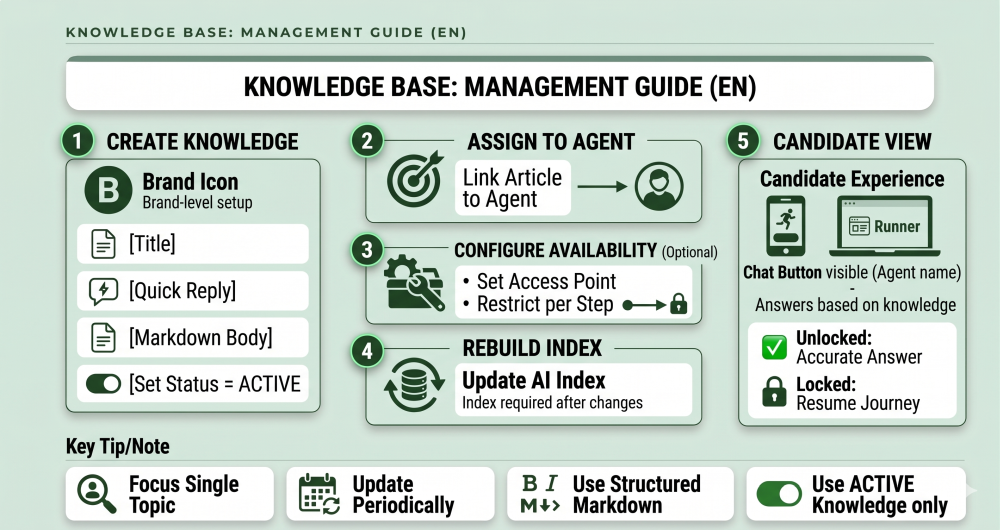
The Knowledge Base powers Agent Chat by providing structured information that the AI uses to answer Candidate questions. You control:
- What information the AI knows
- When it becomes available
- Where it can be used in the Journey
Well-structured Knowledge ensures better, more relevant responses.
How to Configure #
1. Create Knowledge #
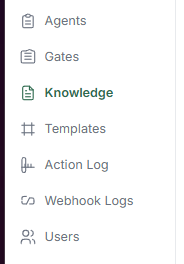
- Go to the Knowledge section.
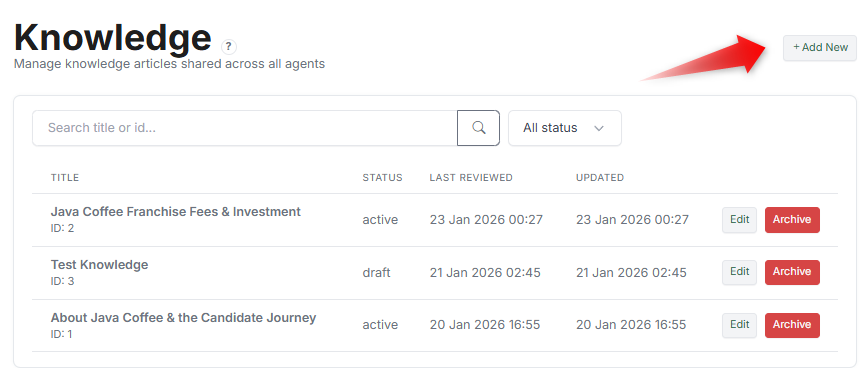
- Click Add New.
- Enter:
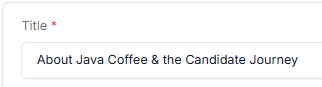
- Title
- Short Answer (optional, for quick replies)

- Content (Markdown format)
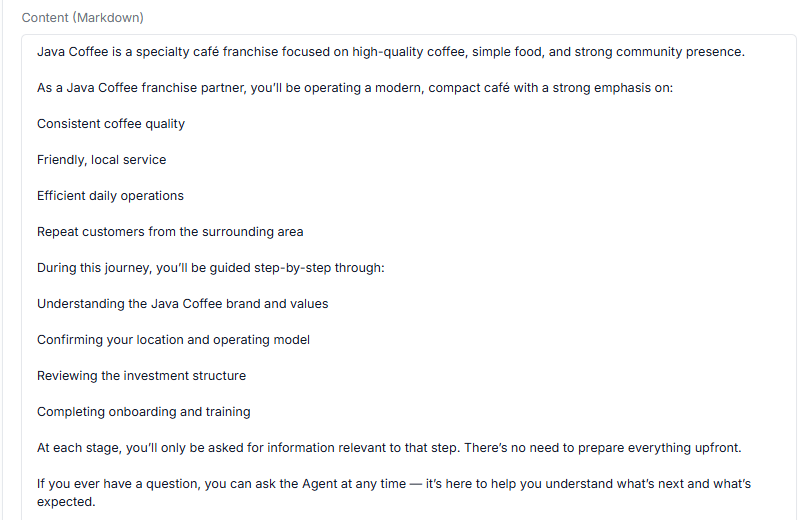
- Set Status to Active.

- Click Save.
2. Assign Knowledge to an Agent #
- Open the Agent Editor.
- Go to the Agent Chat section.
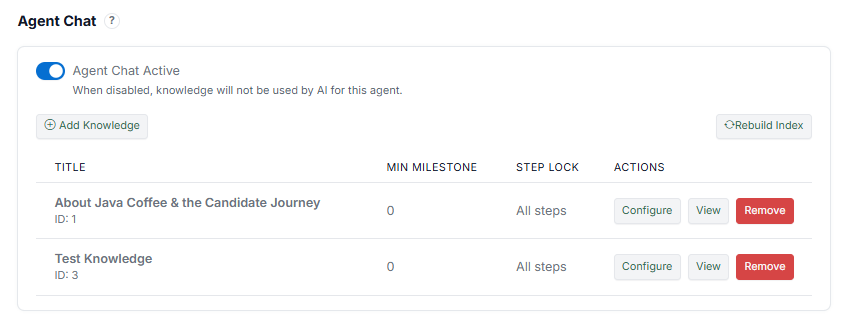
- Click Add Knowledge.
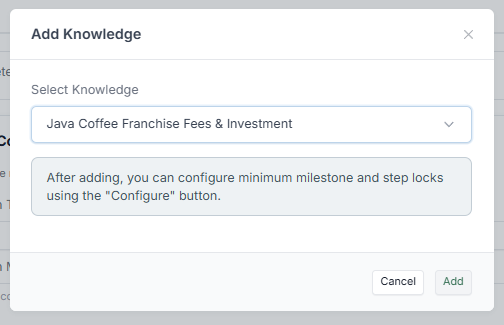
- Select the Knowledge article.
- Click Add.
3. Configure Availability (Optional) #
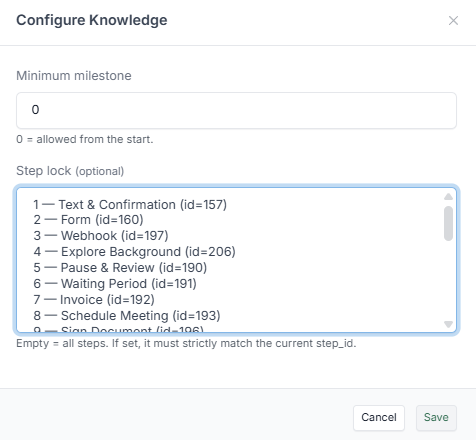
After adding Knowledge, click Configure to control when it can be used:
- Min Milestone — Defines when Knowledge becomes available (e.g.,
0= available from the start) - Step Lock — Restricts Knowledge to specific Steps (e.g., only available during onboarding Steps)
4. Rebuild Index #
Click Rebuild Index after:
- Adding new Knowledge
- Updating existing content
This ensures the AI uses the latest information.
What the Candidate Sees #
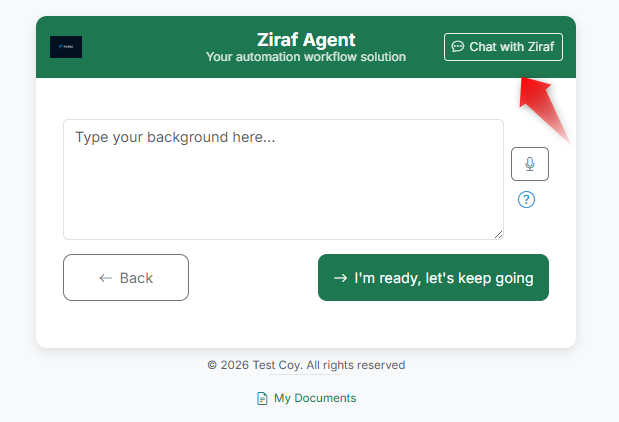
In the Runner:
- A "Chat with [Agent Name]" button is visible
- The Candidate can ask questions at any time (if enabled)
- Responses are generated based on available Knowledge
If Knowledge is restricted:
- The AI will only answer based on what is currently unlocked
- It may guide the Candidate to continue the Journey
How Knowledge Is Used by the AI #
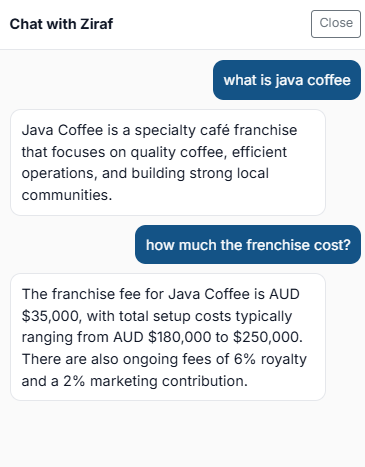
When a Candidate asks a question:
- The system searches assigned Knowledge.
- Filters based on Milestone / Step rules.
- Retrieves relevant content.
- Generates a contextual response.
The AI only uses:
- Knowledge assigned to the Agent
- Knowledge that is currently available
Tips #
- Keep each Knowledge article focused on one topic
- Use clear and simple language
- Add Short Answers for common questions
- Avoid exposing information too early
- Regularly review and update content
Notes #
- Knowledge is created at the Brand level
- Must be set to Active to be used
- Must be assigned to the Agent to be accessible
- Availability can be controlled per Milestone or Step
- Rebuilding the index may be required after updates